
Panoramic Display of 360° Photos with Three.js | Experience a Realistic Virtual Space with Free Viewpoint Rotation
This is an implementation example of panoramic display by mapping a 360° image onto a sphere using Three.js, allowing free viewpoint rotation.
With OrbitControls, you can rotate the view using mouse operations, and the scene is lightweight and simple to build with WebGL.
It can be used to reproduce spherical images taken with a smartphone on the web, or as interactive virtual space content.
The 360° panoramic photo is applied as a texture to a sphere, and the material is set to display the inside surface of the sphere.
Place the camera at the center of the sphere and allow only drag rotation with OrbitControls — that’s all you need.
Here, a 360° photo taken with an Android device is texture-mapped onto the sphere.
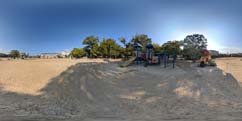
Rotate the view with left mouse drag.
<!DOCTYPE html>
<html lang="ja">
<head>
  <meta http-equiv="content-language" content="ja">
  <meta charset="UTF-8">
  <meta name="viewport" content="width=device-width, initial-scale=1.0, minimum-scale=0.5, maximum-scale=2.0,user-scalable=yes">
  <script src="./three_r145/three.min.js"></script>
  <script src="./three_r145/OrbitControls.js"></script>
  <script>
  var scene,camera;
  var main = function () {
    // ■ Create scene
    scene = new THREE.Scene();

    // Get target canvas
    let can=document.getElementById('can');
    // Get canvas width and height
    let w = parseInt(can.style.width);
    let h = parseInt(can.style.height);

    // ■ Create and set camera
    // THREE.PerspectiveCamera( field of view (deg), aspect ratio, near clipping plane, far clipping plane );
    camera = new THREE.PerspectiveCamera( 30, w/h, 0.1, 10000 );
    camera.position.set( 0, 0, 1 );// set camera position
    scene.add( camera );

    // ■ Place renderer on DOM(canvas)
    renderer = new THREE.WebGLRenderer({canvas:can , antialias: true});// enable antialiasing
    renderer.setSize( w, h );
    renderer.setClearColor(0x444444, 1);

    // ■ Load and set texture mapping image
    // Load texture image to apply to sphere
    let Texture360=new THREE.TextureLoader().load('./three_r145/img/360.jpg');
    Texture360.wrapS=THREE.RepeatWrapping;
    Texture360.wrapT=THREE.RepeatWrapping;
    // Set texture repeat count
    Texture360.repeat.set(1,1);

    // Create basic material for sphere
    let SphereMaterial=new THREE.MeshBasicMaterial({
      color:0xFFFFFF,
      side:THREE.BackSide,// set to display inside surface
      map: Texture360
    });

    // Create sphere geometry (radius, width segments, height segments)
    let SphereGeometry=new THREE.SphereGeometry(1,32,24);

    // Create sphere mesh
    let SphereMesh=new THREE.Mesh(SphereGeometry,SphereMaterial);
    scene.add(SphereMesh);

    // Move with left/right mouse drag + middle button wheel
    const controls = new THREE.OrbitControls(camera, renderer.domElement);
    controls.target.set(0,0,0);
    controls.enablePan=false; // disable panning
    controls.enableZoom=false;// disable zoom
    controls.update();
    renderLoop();
  };

  function renderLoop () {
    requestAnimationFrame( renderLoop );
    renderer.render( scene, camera );
  }

  window.addEventListener( 'DOMContentLoaded', main, false );
  </script>

</head>
<body>
  <canvas id="can" style="width:300px; height:180px;margin:0;padding:0;cursor:grab;"></canvas>
</body>
</html>