
Texture Mapping in Three.js Designing 3D Content for the Web
By using Three.js, you can apply realistic textures to 3D objects and achieve more natural rendering.
In this article, we explain in detail how to load textures with TextureLoader,
how to configure materials, and how to adjust shadows.
Texture Mapping in Three.js (using Three.js[r145])
In Three.js,
let floorTexture=new THREE.TextureLoader().load('texture image filename');
allows you to load a texture image.
By setting the texture to a material and applying that material to a geometry, you can perform texture mapping.
Left mouse drag rotates, right mouse drag moves, and the wheel zooms in/out.
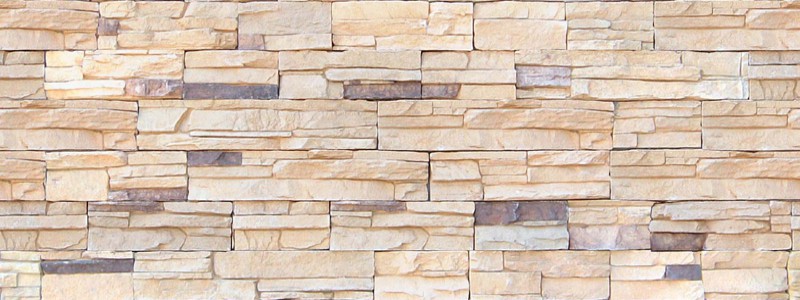
A JPG texture image is applied to the floor.
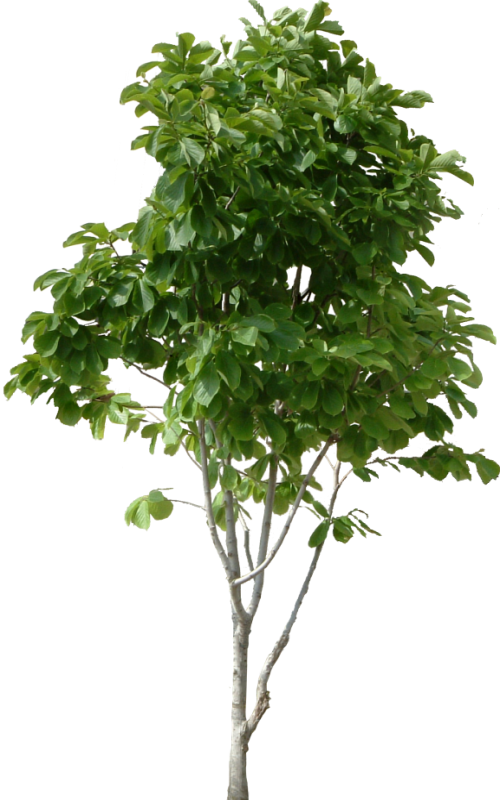
A transparent PNG texture is applied to the tree.
To ensure the tree’s shadow on the floor is rendered correctly, a custom depth material (customDepthMaterial) is set.
// ■ Load and set texture image for texture mapping
// Floor texture (JPEG image 800x300 pixels)
let floorTexture=new THREE.TextureLoader().load('./three_r145/img/stone.jpg');
floorTexture.wrapS=THREE.RepeatWrapping;
floorTexture.wrapT=THREE.RepeatWrapping;
// Specify the number of times the texture repeats
floorTexture.repeat.set(4,4);

// Create Phong material for the floor (glossy material affected by lights)
let floorMaterial=new THREE.MeshPhongMaterial({
  color:0x999999,
  specular: 0xFFFFFF, shininess: 2,
  side:THREE.DoubleSide, // render both sides
  transparent:false, opacity:1.0,
  wireframe:false, wireframeLinewidth:0,
  map: floorTexture
});