How to Create a Startup Shortcut (.lnk) in Delphi | Windows Auto‑Launch Implementation Guide
This page explains how to create a shortcut (.lnk file) in the Windows Startup folder using Delphi,
allowing your application to launch automatically when the user logs in.
The implementation uses the following key technologies:
– Windows API: SHGetSpecialFolderPath
– COM interfaces: IShellLink / IPersistFile
– A clean and concise approach using Delphi’s standard libraries
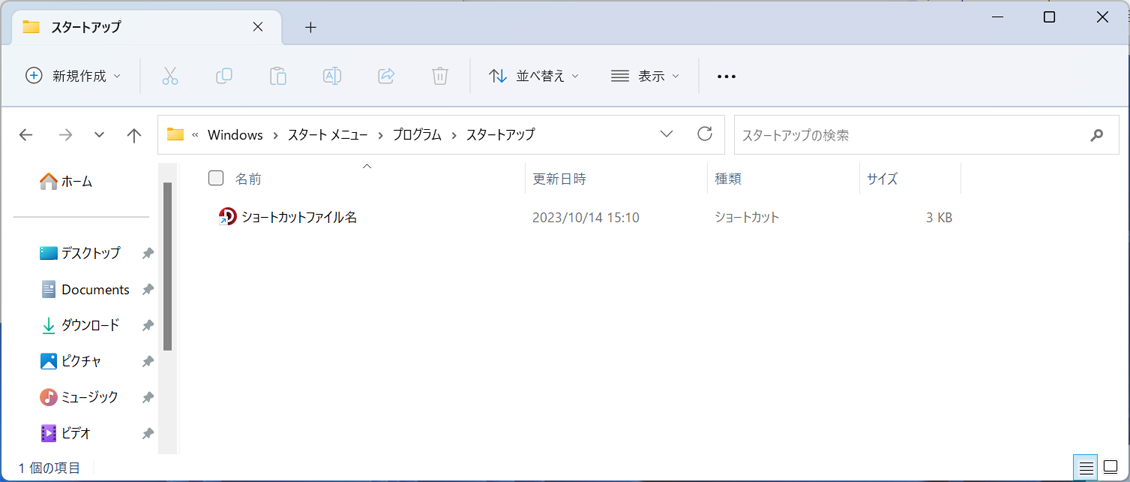
The default path of the Startup folder is:
C:\Users\[User Name]\AppData\Roaming\Microsoft\Windows\Start Menu\Programs\Startup
With this method, you can enable auto‑launch behavior without requiring an installer.
Clear sample code is provided to walk you through the entire implementation process.
Creating the Project and Designing the Form
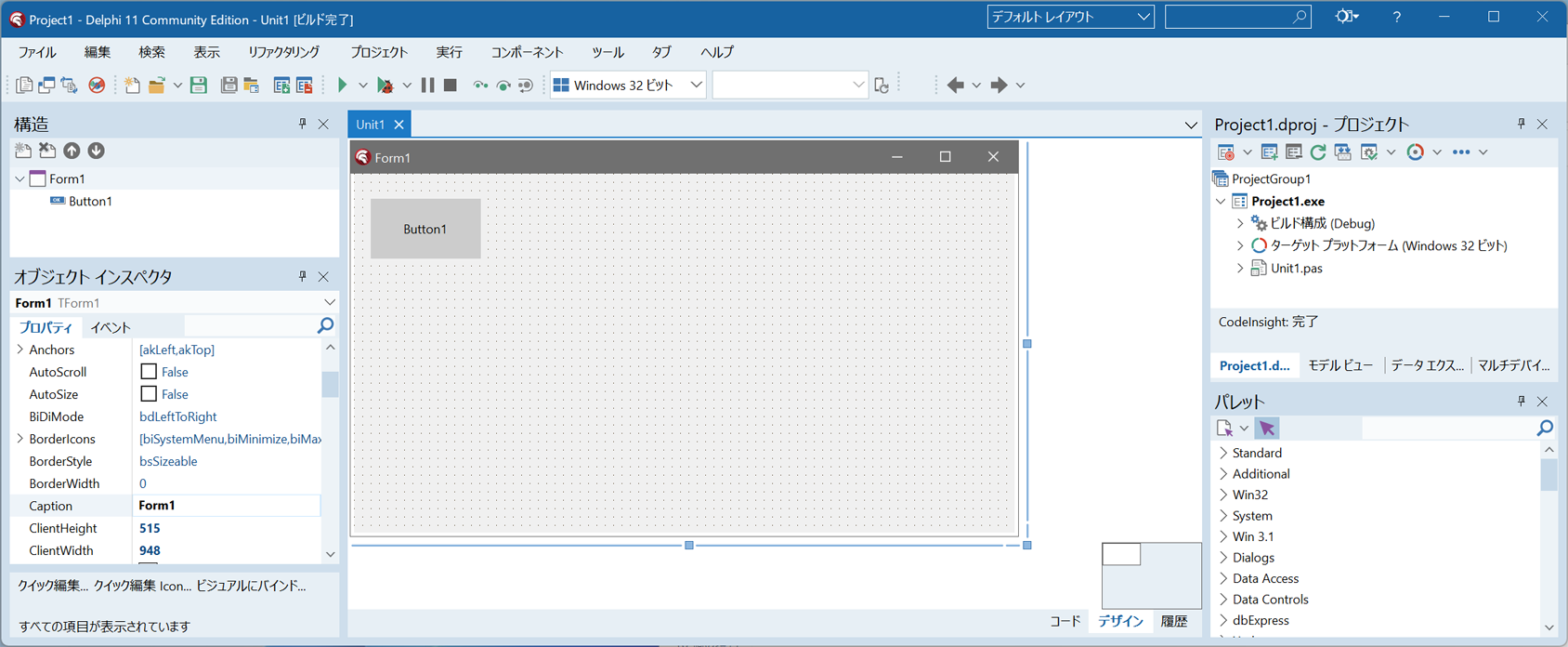
Start Delphi and select File → New → Windows VCL Application – Delphi from the menu.
On the main form (Form1), drag and drop a single TButton onto the designer.
Click “Save All” to create the project folder and save both the unit and the project files.
Writing the Source Code
Double‑click Button1 to open the event handler and write the following source code.
unit Unit1;

interface

uses
  Winapi.Windows, Winapi.Messages, System.SysUtils, System.Variants, System.Classes,
  Vcl.Graphics, Vcl.Controls, Vcl.Forms, Vcl.Dialogs, Vcl.StdCtrls;

type
  TForm1 = class(TForm)
    Button1: TButton;
    procedure Button1Click(Sender: TObject);
  private
    { Private declarations }
  public
    { Public declarations }
  end;

var
  Form1: TForm1;

implementation

{$R *.dfm}

uses ShlObj, ActiveX, ComObj;

procedure TForm1.Button1Click(Sender: TObject);
var
  pc: PChar;
  Path: String;
  IFace: IInterface;
  ShellLink: IShellLink;
  PersistFile: IPersistFile;
begin
  GetMem(pc, 2048);
  try
    // Retrieve the full path of the Startup folder
    SHGetSpecialFolderPath(Handle, pc, CSIDL_STARTUP, False);
    Path := pc;
  finally
    FreeMem(pc);
  end;

  // Obtain the IShellLink and IPersistFile interfaces
  IFace := CreateComObject(CLSID_SHELLLINK);
  ShellLink := IFace as IShellLink;
  PersistFile := IFace as IPersistFile;

  // Set the target executable for the shortcut
  ShellLink.SetPath(PChar(Application.ExeName));

  // Set the working directory
  ShellLink.SetWorkingDirectory(PChar(ExtractFileDir(Application.ExeName)));

  // Set the icon for the shortcut
  ShellLink.SetIconLocation(PChar(Application.ExeName), 0);

  // Set arguments for the shortcut (if needed)
  ShellLink.SetArguments(PChar(''));

  // Set a description (comment) for the shortcut
  ShellLink.SetDescription(PChar('Description'));

  // Create the shortcut file
  PersistFile.Save(PChar(Path + '\ShortcutName.lnk'), True);
end;

end.
Running the Application
From the menu, select Run → Run to compile and execute the application.
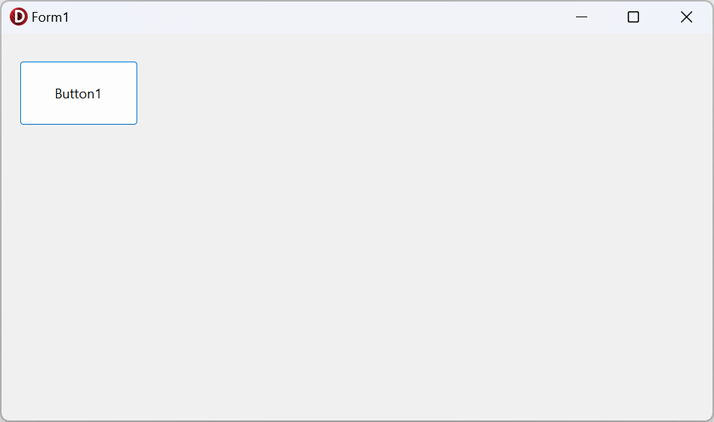
When you click Button1, a shortcut (.lnk file) is created in the Windows Startup folder.
Once the shortcut is placed in the Startup folder, the application will automatically launch
the next time the user logs in to Windows.
If you no longer want the application to auto‑launch, simply delete the shortcut (.lnk) file
from the Startup folder.