Reading Aloud the Entered Text — Delphi Source Code Collection
Reading aloud the text entered in Delphi (Windows speaks the text)
1. Launch Delphi
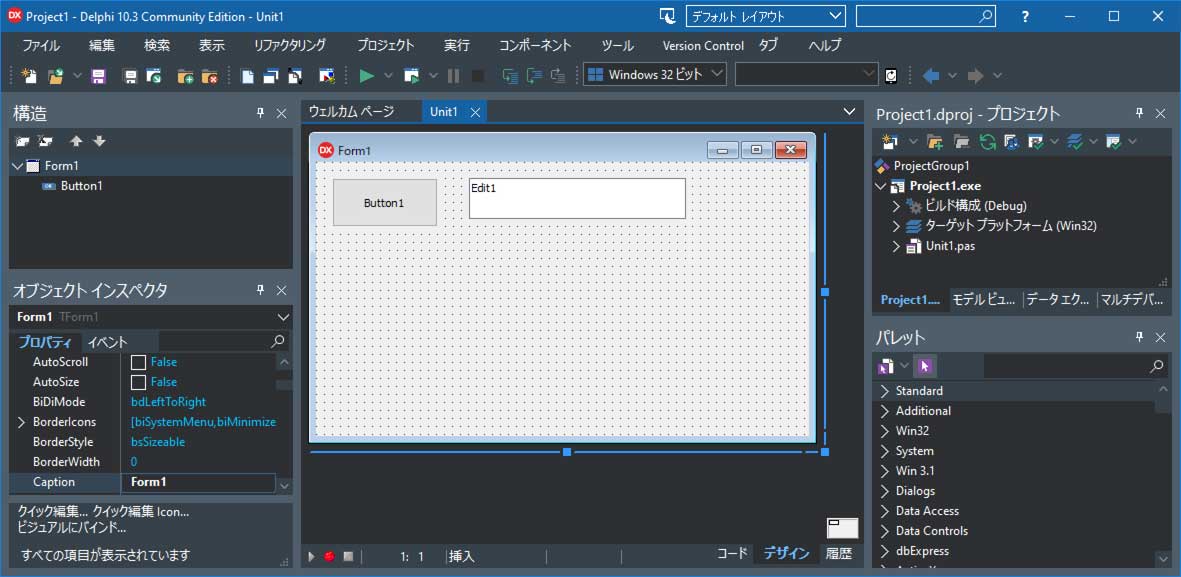
Start Delphi and select File → New → Windows VCL Application – Delphi to create a new VCL project.
Place one TButton and one TEdit on the form.
Then click File → Save All to save the project and unit files.
2. Import the Type Library
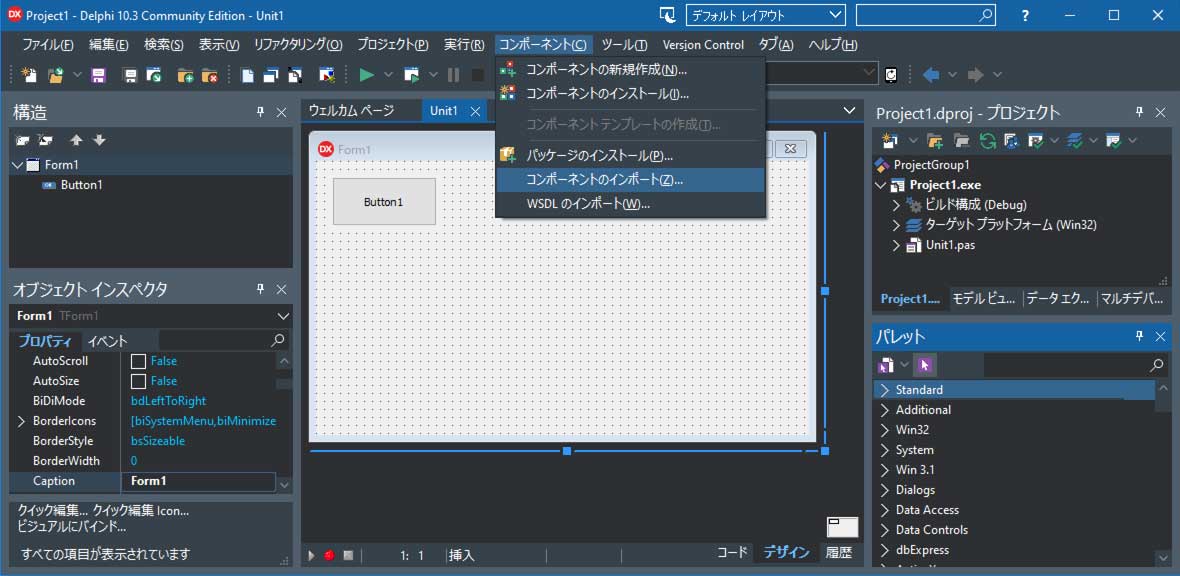
Select Component → Import Component.
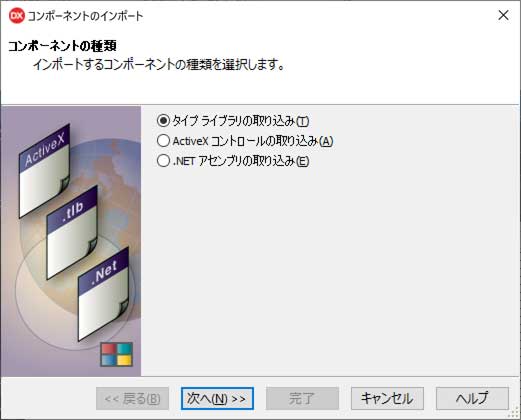
Choose Import a Type Library and click Next.
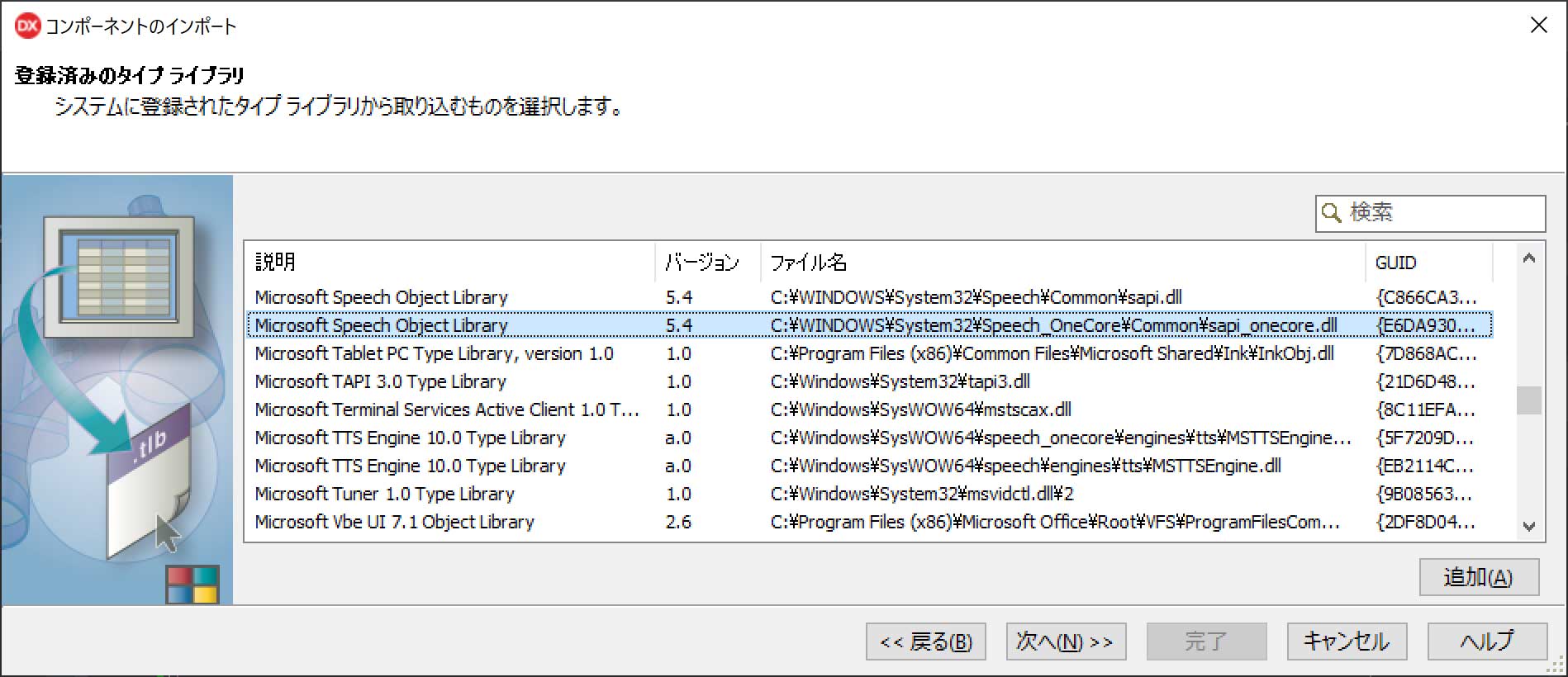
Select Microsoft Speech Object Library 5.4 — C:\WINDOWS\System32\Speech_OneCore\Common\sapi_onecore.dll and click Next.
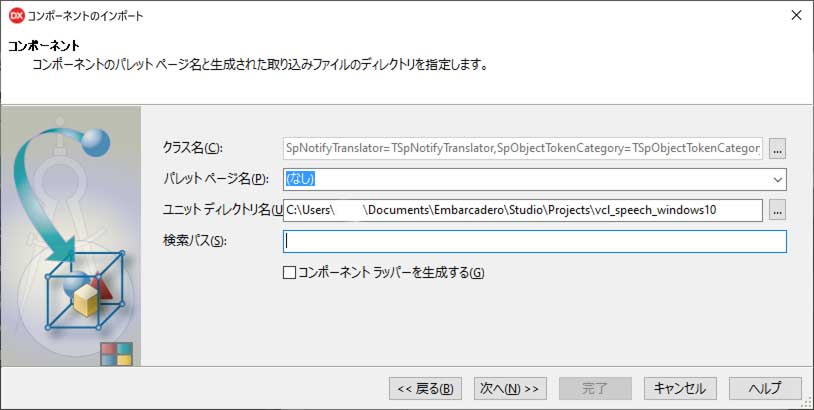
For the unit directory, specify the folder where you saved your project earlier, then click Next.
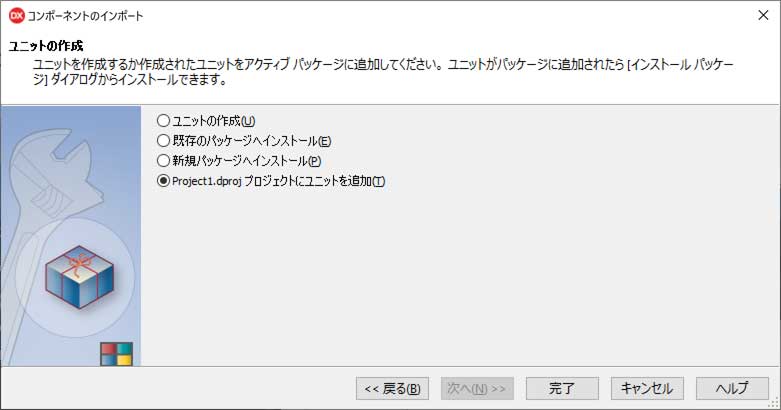
Select Add unit to xxxx.dproj and click Finish.
The type library unit xxxx.dproj has now been created.
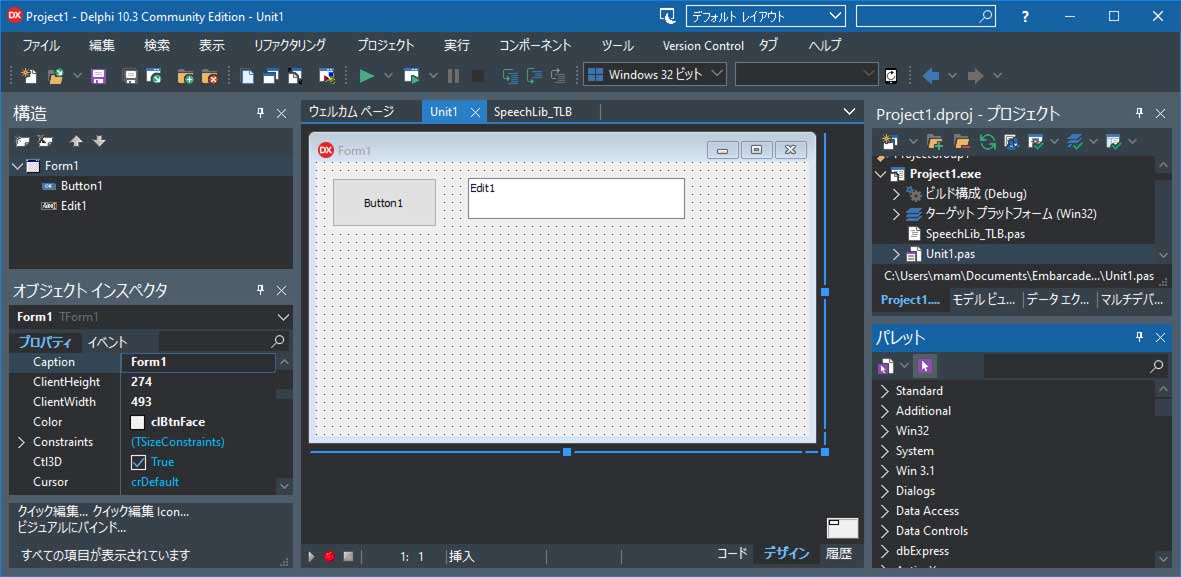
Click the form unit tab (usually Unit1).
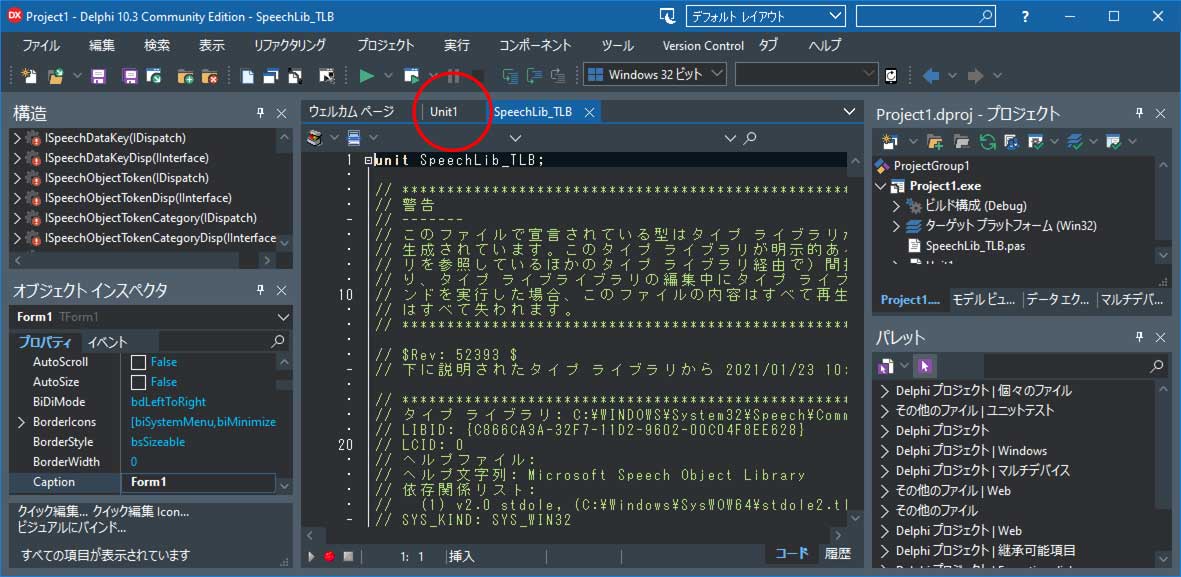
The form will be displayed.
3. Writing the Source Code
Double‑click Button1 and enter the following code.
unit Unit1;

interface

uses
  Winapi.Windows, Winapi.Messages, System.SysUtils, System.Variants, System.Classes, Vcl.Graphics,
  Vcl.Controls, Vcl.Forms, Vcl.Dialogs, Vcl.StdCtrls;

type
  TForm1 = class(TForm)
    Button1: TButton;
    Edit1: TEdit;
    procedure Button1Click(Sender: TObject);
  private
    { Private declarations }
  public
    { Public declarations }
  end;

var
  Form1: TForm1;

implementation

uses SpeechLib_TLB;

{$R *.dfm}

procedure TForm1.Button1Click(Sender: TObject);
var
  Voice: ISpVoice;
  ObjectTokenCategory: ISpObjectTokenCategory;
  ObjectTokens: IEnumSpObjectTokens;
  ObjectToken : ISpObjectToken;
  StreamNumber: Cardinal;
  n: Cardinal;
begin
  Voice := CoSpVoice.Create();

  Voice.GetVoice(ObjectToken);
  ObjectToken.GetCategory(ObjectTokenCategory);

  //411: Japanese, male voice
    ObjectTokenCategory.EnumTokens(
      'language=411;gender=male', '', ObjectTokens
    );
  //411: Japanese, female voice
  //  ObjectTokenCategory.EnumTokens(
  //    'language=411;gender=female', '', ObjectTokens
  //  );

  ObjectTokens.GetCount(n);
  if n > 0 then
  begin
    ObjectTokens.Item(0, ObjectToken);
    Voice.SetVoice(ObjectToken);
  end;

  Voice.SetRate(0);//-10 to 10: speaking speed
  Voice.SetVolume(50);//0 to 100: volume

  Voice.Speak(PWideChar(Edit1.Text), 0, StreamNumber);
end;

end.
4. Run the Application
Compile and run the program using Run → Run (F9).
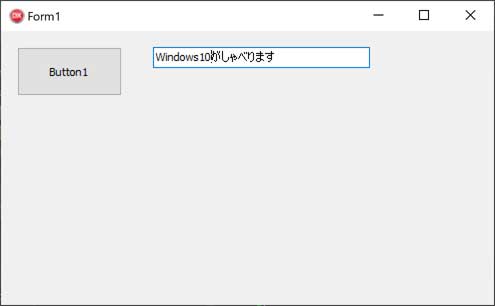
Enter the text you want Windows to speak into Edit1, then click Button1.
Windows will read the text aloud.