Creating a Service Application in Delphi
In this tutorial, we will create a Windows Service application using Delphi.
The service you create can be registered from Control Panel → Administrative Tools → Services.
Once registered, the service will start automatically when the PC is powered on, even without logging into Windows.
Note that a Windows Service cannot display windows or other UI elements.
In this example, we will build a very simple Windows Service that works as a minimal web server.
The actual code we will write is only about 10 lines.
Start Delphi and Create a New Project
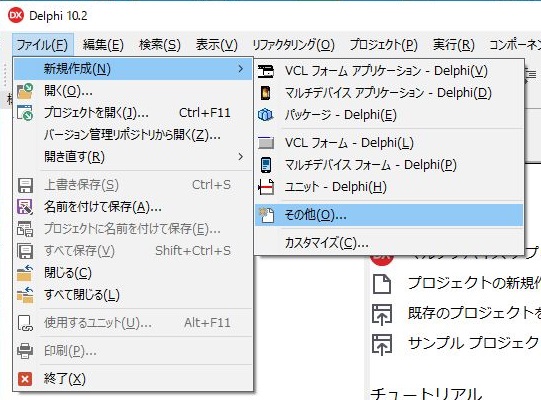
Launch Delphi and select File → New → Other...
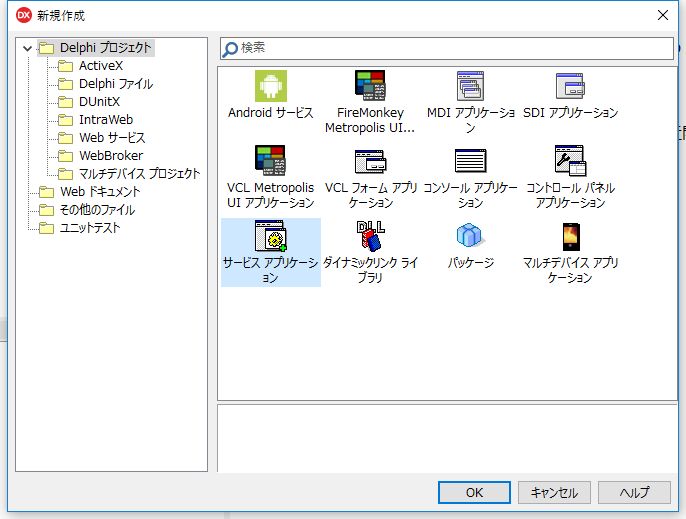
In the left pane, select Delphi Projects, then choose Service Application in the right pane and click OK.
If the following dialog appears, click OK.

You will see the following screen.
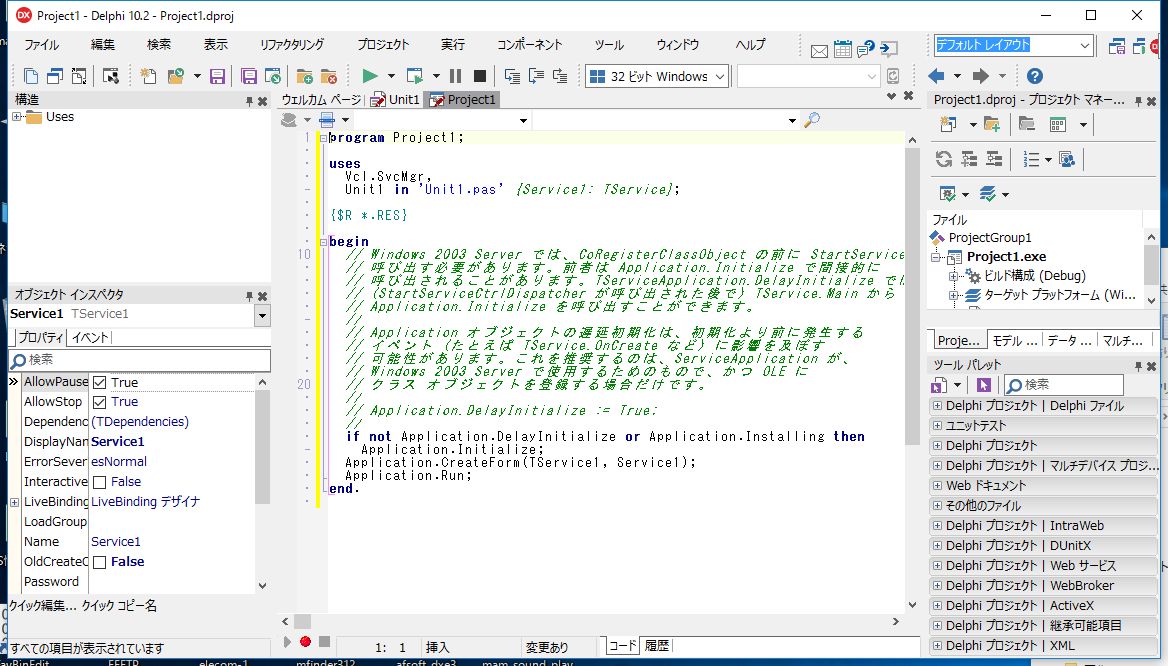
Click the Unit1 tab.
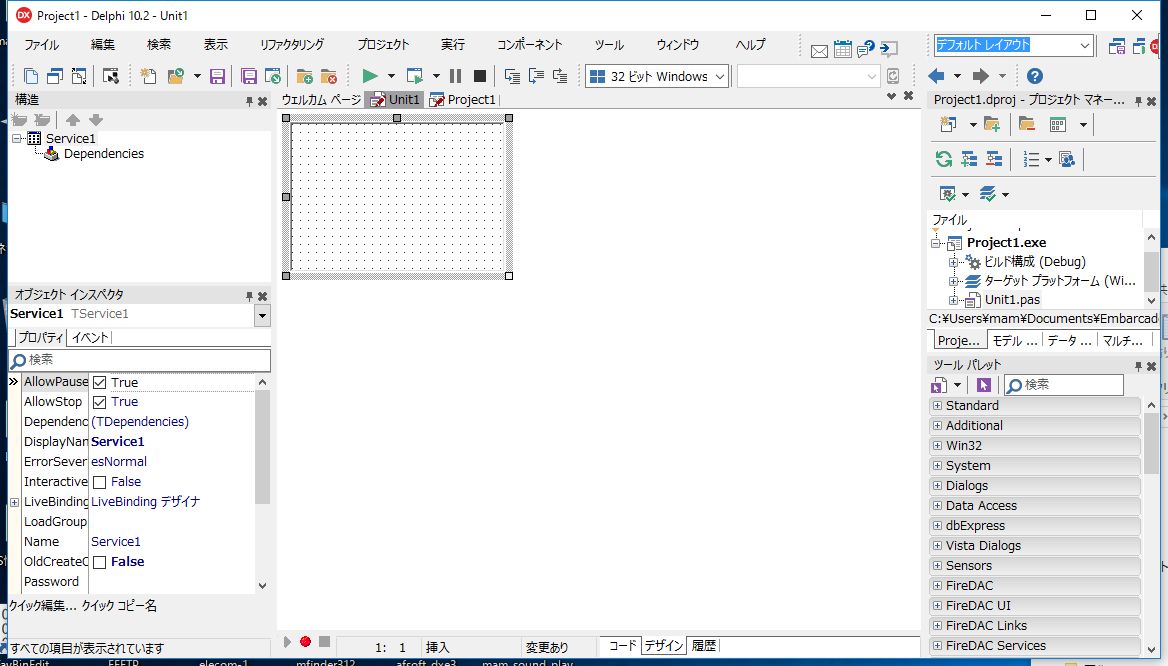
From the Tool Palette, drag and drop TIdHTTPServer onto the designer.
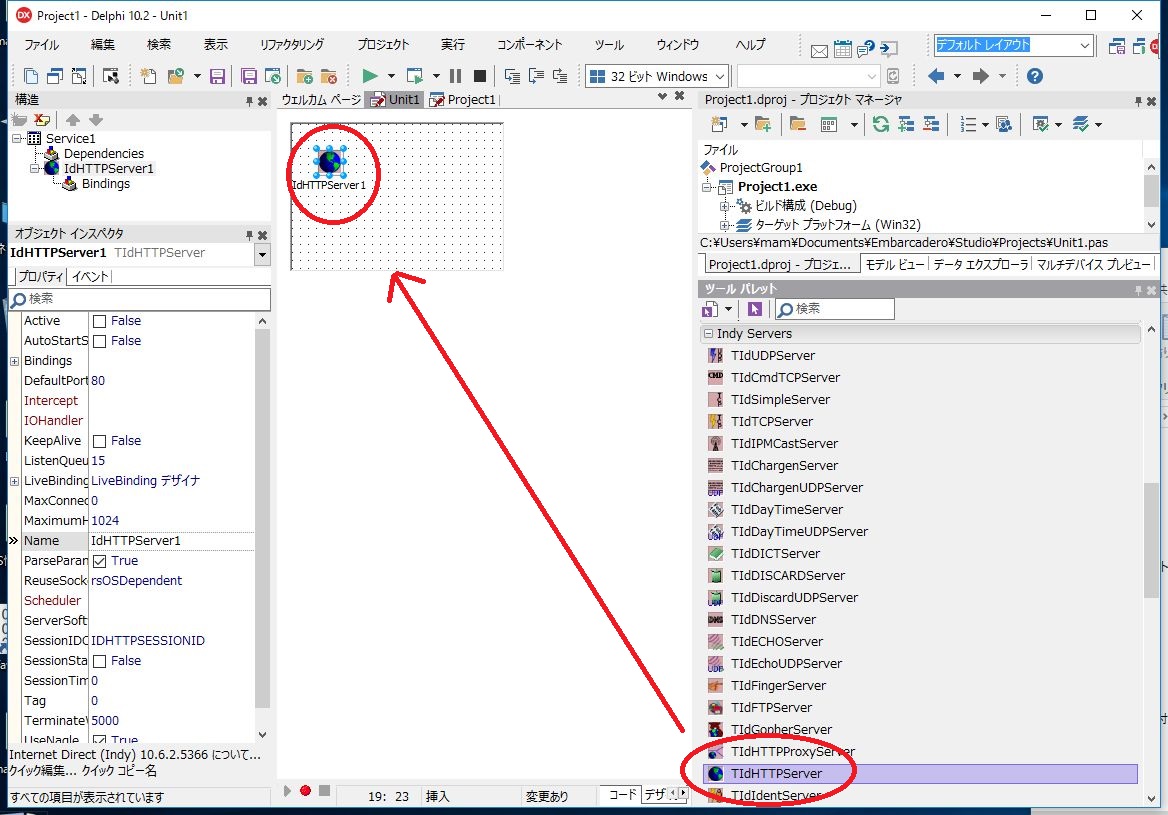
Set the DefaultPort property to 8100.
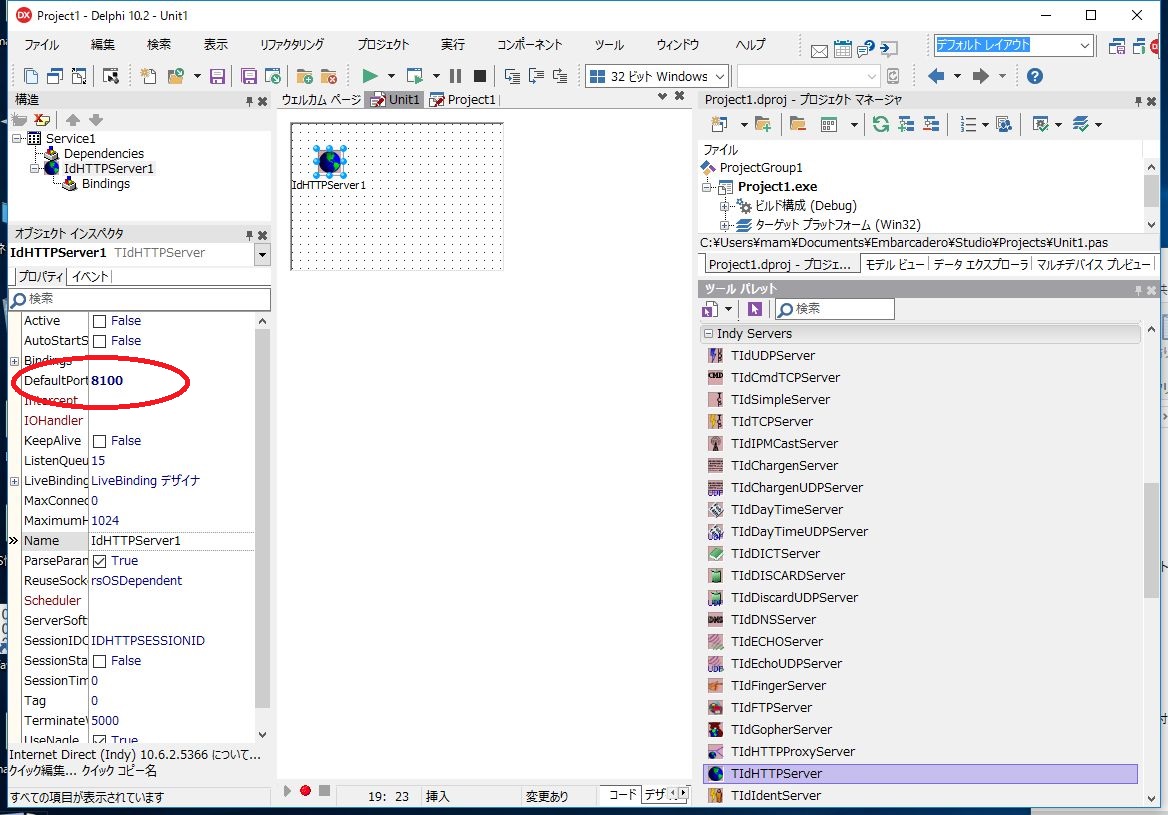
Save the Project and Unit Files

Write the Source Code
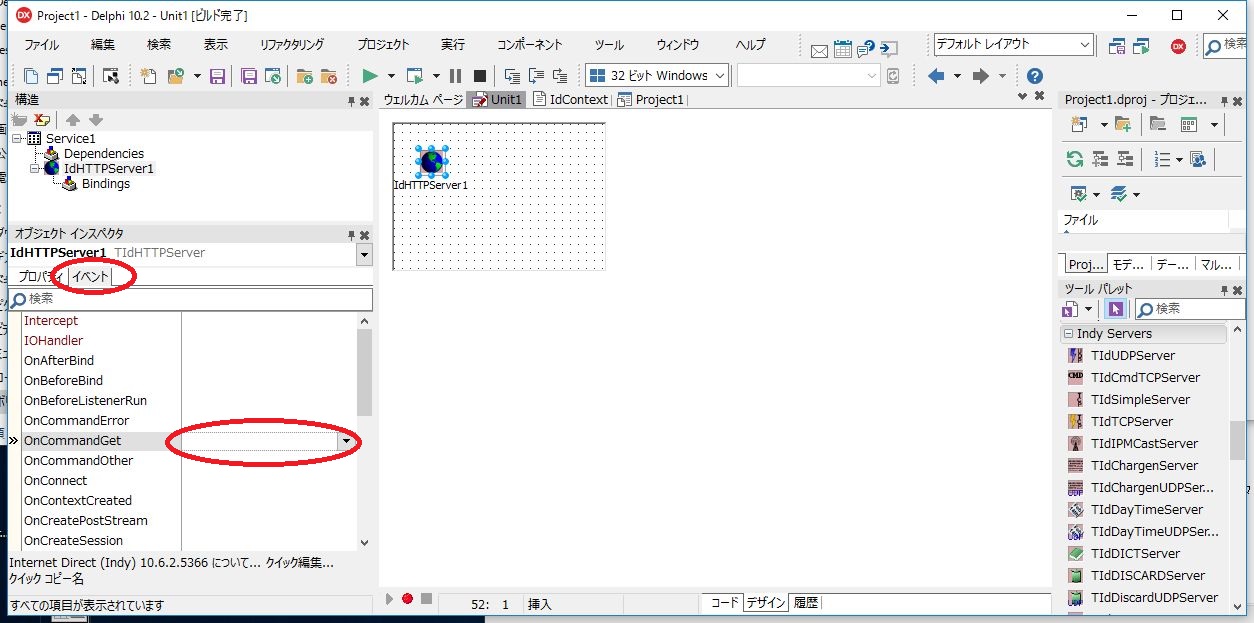
Select IdHTTPServer1 and switch to the Events tab.
Then double‑click the field to the right of OnCommandGet.
Enter the following source code:
procedure TService1.IdHTTPServer1CommandGet(AContext: TIdContext;
  ARequestInfo: TIdHTTPRequestInfo; AResponseInfo: TIdHTTPResponseInfo);
var strm:TStringStream;
    st:string;
begin
  AResponseInfo.ContentType:='text/html; charset=UTF-8';
  st:='<html>'+
    '<head><meta charset="UTF-8"></head>'+
    '<body>Response From Service</body>'+
    '</html>';
  strm:=TStringStream.Create(st,TEncoding.UTF8);
  AResponseInfo.ContentStream:=strm;
end;
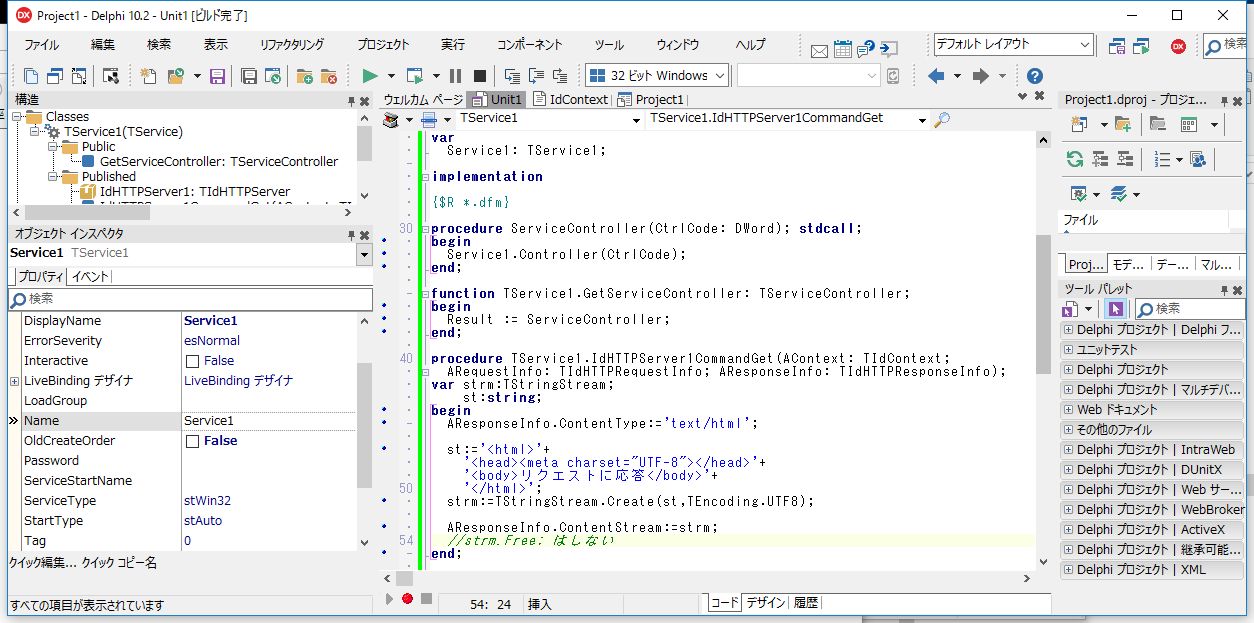
Press the F12 key to switch back to Design mode.
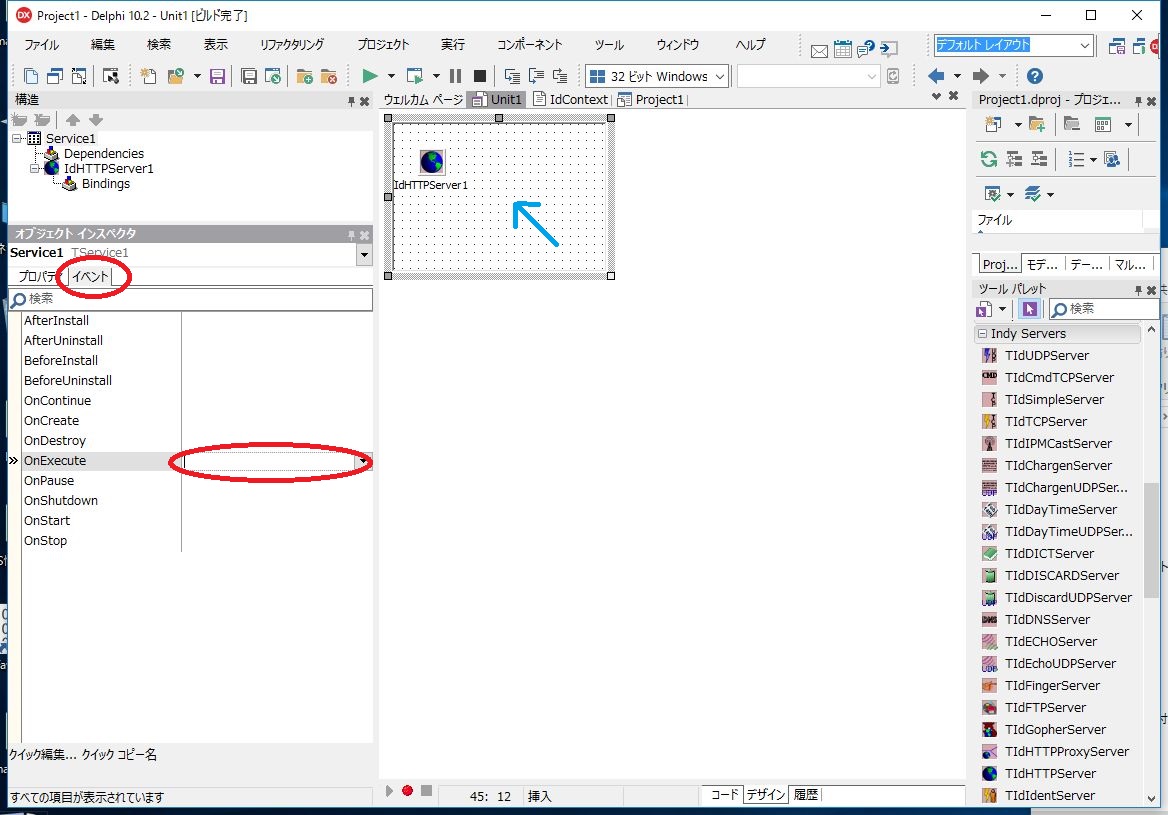
Click Service1, then open the Object Inspector and switch to the Events tab.
Next, double‑click the field to the right of OnExecute.
Enter the following source code and click the Save button.
procedure TService1.ServiceExecute(Sender: TService);
begin
  IdHTTPServer1.Active:=True;
  while not Terminated do
  begin
    ServiceThread.ProcessRequests(True);
  end;
  IdHTTPServer1.Active:=False;
end;
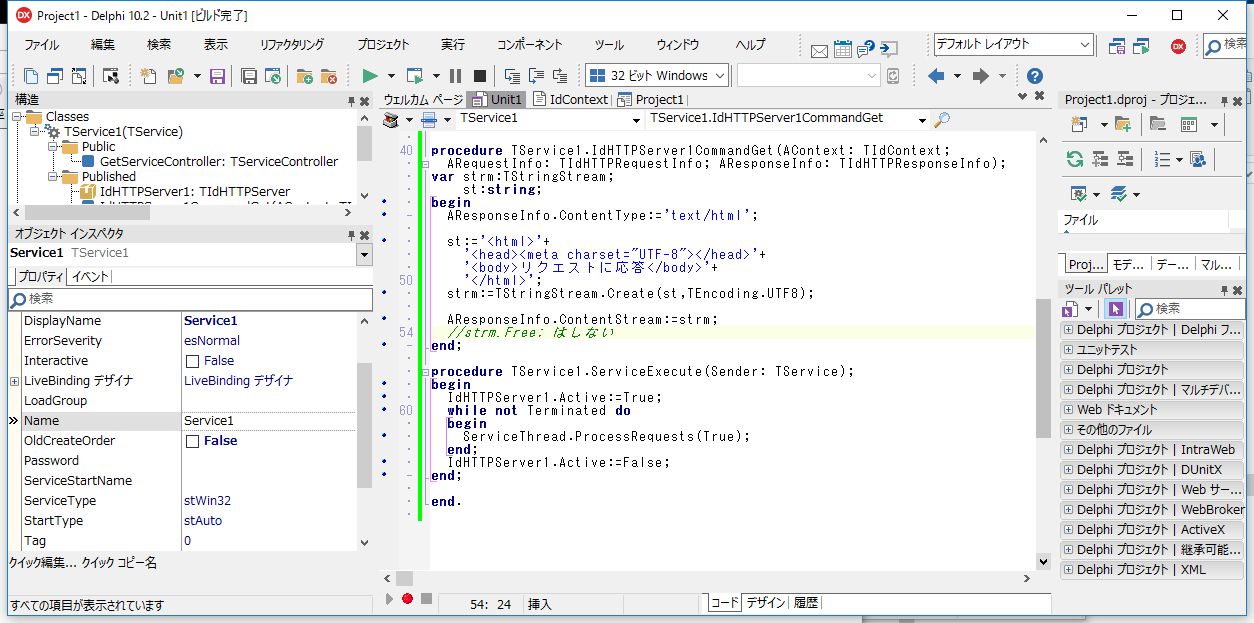
Compile the Project
Click Project -> Build All Projects.
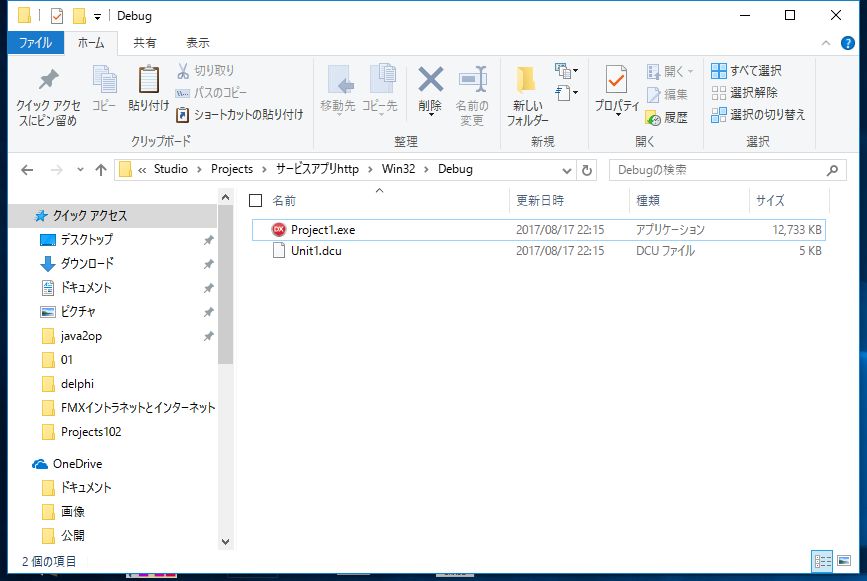
The compiled Project1.exe will be generated in the Win32\Debug folder of your project directory.
Installation and Execution
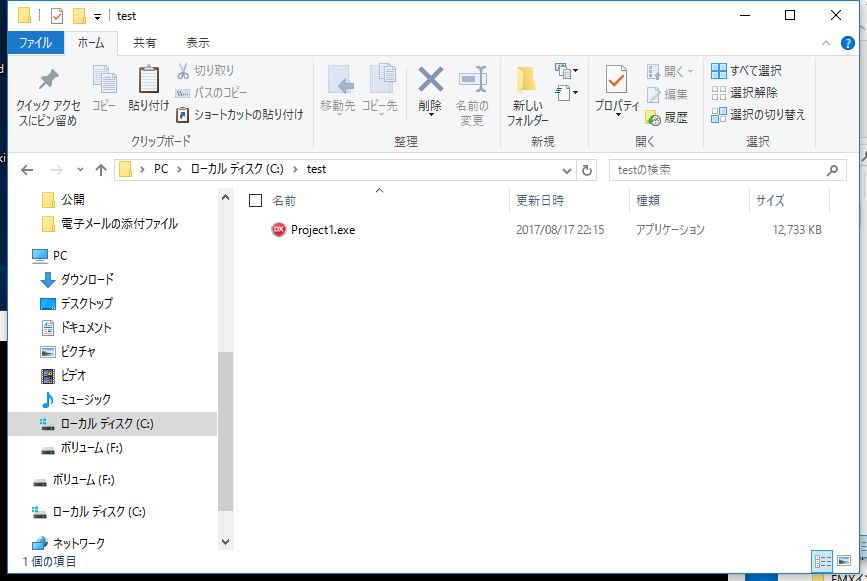
Create a folder named test directly under the C drive, and copy the compiled Project1.exe into it.
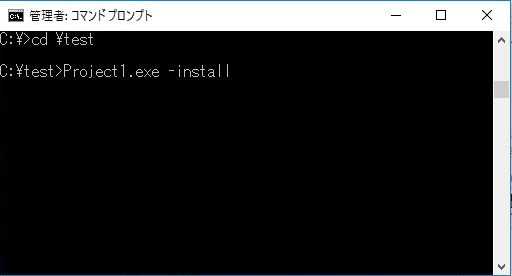
Launch a Command Prompt with administrator privileges.
(Right‑click Command Prompt under Start → Windows System Tools, then select More → Run as administrator.)
Enter the following commands to install the service:
cd \test
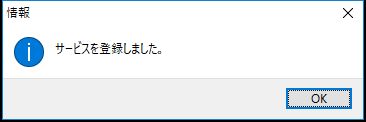
Project1.exe -install
Starting the Service
Right‑click the Start button and open Control Panel → Administrative Tools → Services.
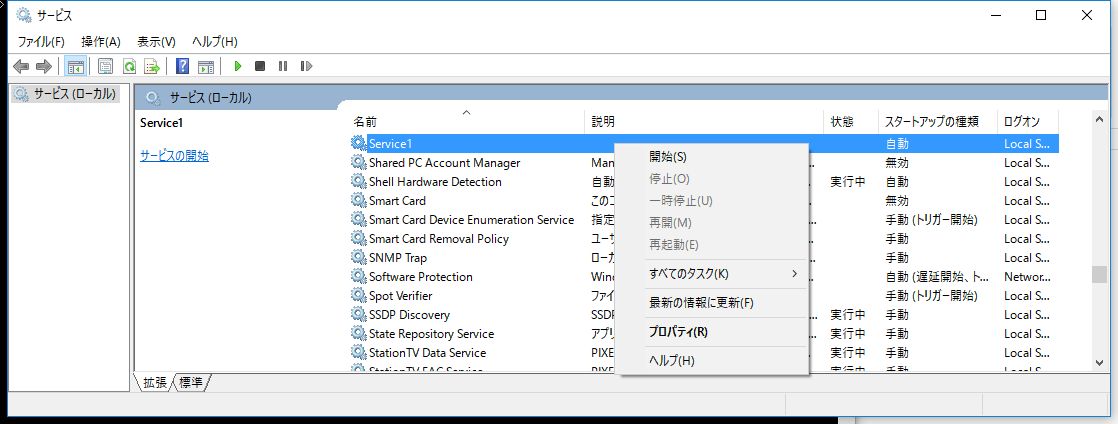
Scroll through the list and look for the service named Service1.
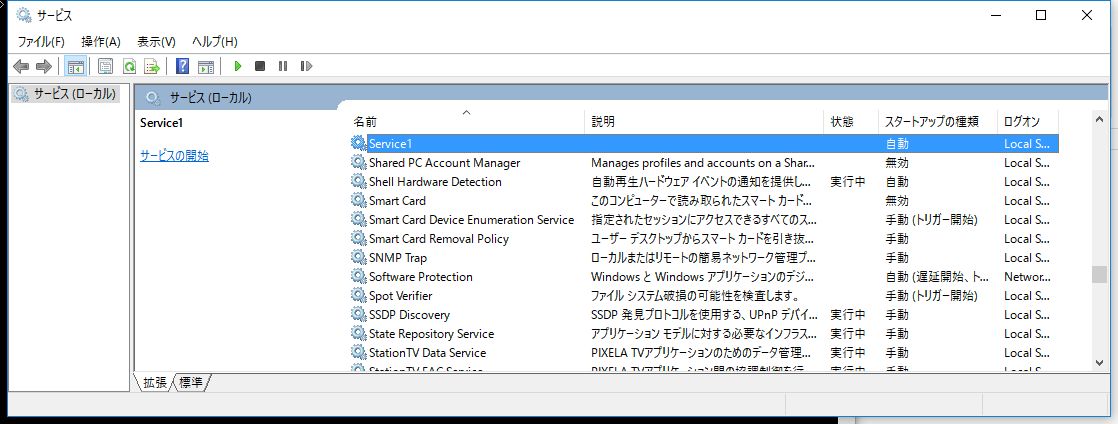
Right‑click Service1 and select Start.
Test in a Web Browser
Launch your web browser.
In the address bar, enter:
http://localhost:8100/
and press Enter.
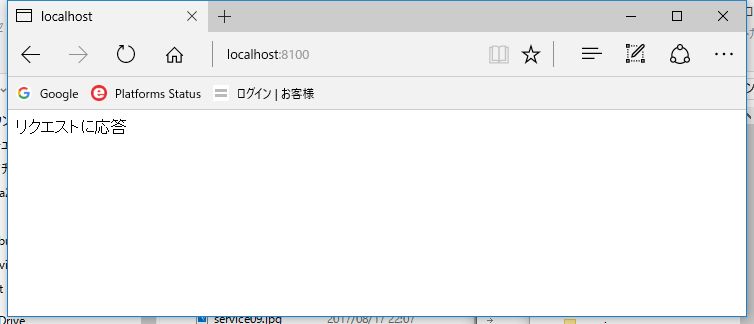
You should now see a response, confirming that the web server is running as a Windows service.